

Set Up Claude · Part 1, Get Claude · Step 1 of 10
Create your Claude account and pick a plan
Time10 minutes
You needA Mac or Windows computer and a card to pay
You finish withA paid Claude account, ready for step 2
Most people ask Claude for help and get a bland answer that could be for any business. Almost all of that comes from how Claude is set up. This guide sets it up properly for your business, one short step at a time.
What this guide fixes
Generic answersClaude knows nothing about your customers, your prices or how you work.
Claude forgetsAn hour into a long chat, it loses what you told it at the start.
Made-up factsA price, a date or a quote that isn't in any of your files.
Starting overEvery new chat, you explain your business again.
By the end you have a project folder set up for real work, and you know how to start working in it.
Before you startPick one job you do every week the same way: a quote, a client update, or chasing an unpaid invoice. In steps 6 and 7 you do that job with Claude.
What you need
- A Mac or Windows computer
- A paid Claude plan, Pro or higher. The free plan has no Code tab, and this guide works in it.
- The email you use for work. You sign in with it often, so pick the one you'll keep.
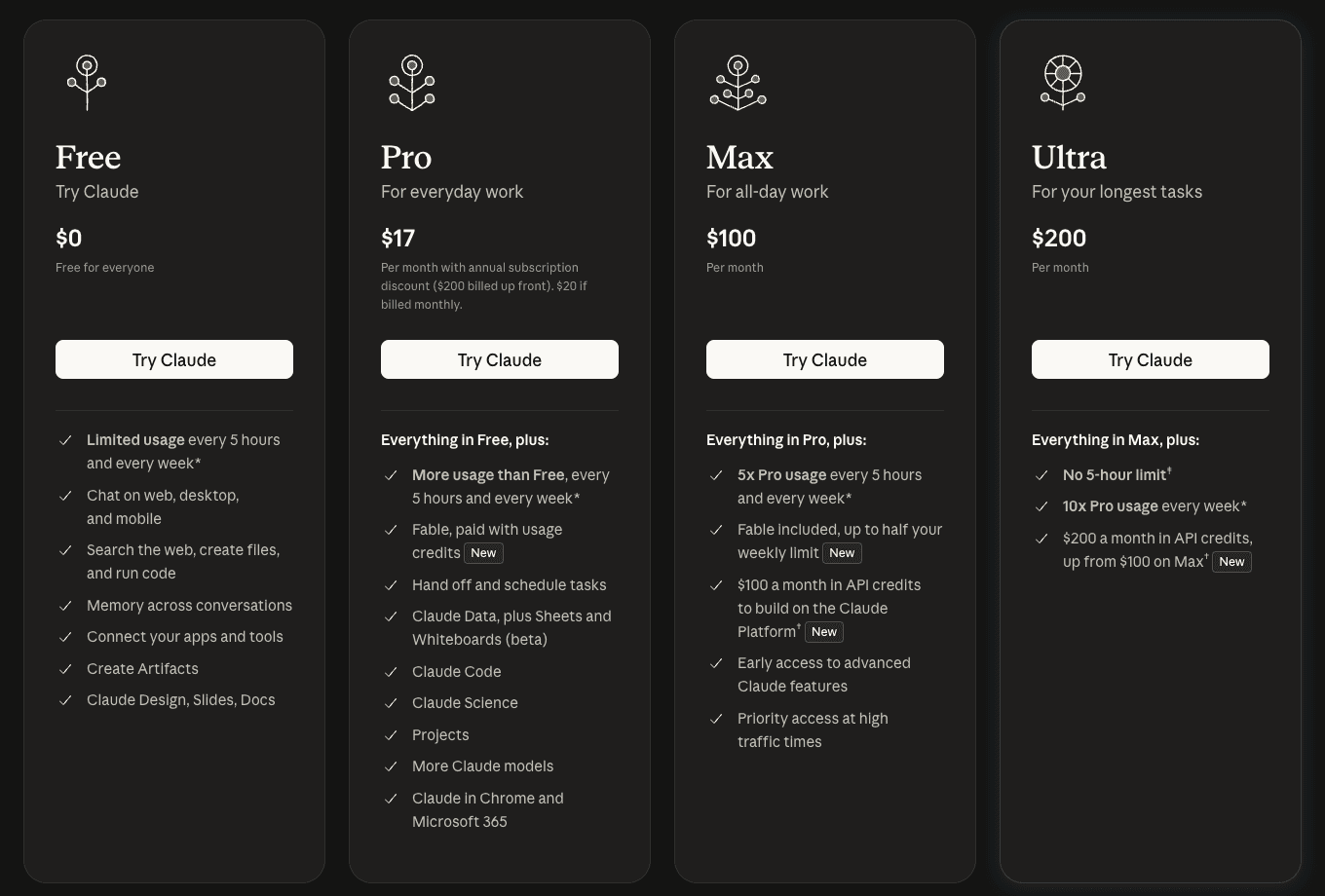
Pick your plan
Start here
Pro
$20 a month
Or $17 a month if you pay $200 for the year. Enough for this guide and for everyday work.
Max
$100 a month
5 times Pro's usage. For when you use Claude for hours every day and keep hitting Pro's limit. Ultra, at $200 a month, gives 10 times.
Create the account
- Go to claude.ai in your web browser.
- Click Continue with Google or Continue with Apple. Or type your email and click Continue with email.
- Follow the prompts, or open the sign-in link Claude emails you. Claude asks for a phone number to check it's you.
Use one work email, and save a passkeyClaude signs you out about every two weeks, and you sign in again on each computer. Create the account with the work email you'll use for everything, so there's one account to sign in to. Then add a passkey, or save the sign-in in your password manager, so signing in takes seconds.
Pay for Pro
- Click your name in the lower left corner, then Settings.
- Click Billing, then Upgrade plan.
- Click Get Pro plan and choose monthly or yearly.
- Enter your card and click Subscribe.

On a company Team plan?Everything works except computer use, in step 2. Computer use, which lets Claude use the apps on your computer, is on Pro, Max and Ultra only.
Check it worked
Open Settings, then Billing. If it says Pro plan, Max plan or Ultra plan, you're ready for step 2.